
Presentation Mode
Turn any note into a slideshow with Presentation Mode. Structure your content using headings and NoteCove handles the rest — slides, transitions, speaker notes, and a companion display for your talking points.
Overview
Presentation Mode lets you present notes as a fullscreen slideshow without leaving NoteCove:
- H1 headings become slide breaks — each
# Headingstarts a new slide - Companion speaker notes window — keep your talking points visible while you present
- CSS transitions — smooth animations between slides
- Keyboard and click navigation — feel natural to any presenter
Starting a Presentation
With a note open, use View > Present (or Cmd+Shift+P / Ctrl+Shift+P).
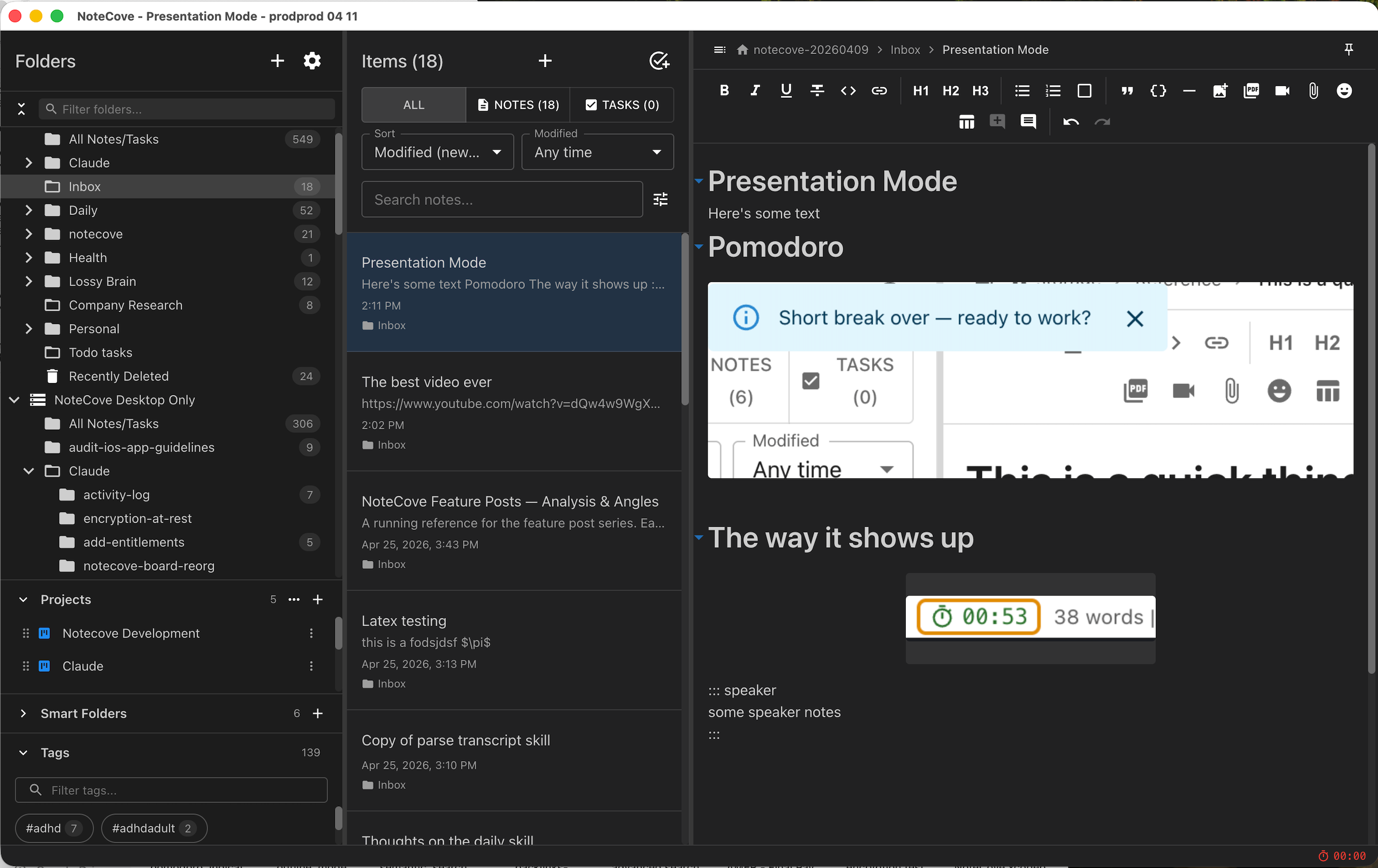
The presentation opens fullscreen. A “Press ESC to exit” toast appears briefly, then fades away.
Structuring Your Note
Use H1 headings (# ) to divide your note into slides:
# Welcome to NoteCove

NoteCove is a local-first notes app.

# Key Features

- Offline sync
- Tasks & projects
- CLI integration

# Thank You
Each H1 heading becomes the slide title. All content between H1s becomes the slide body.
Tip: Content before the first H1 heading forms an untitled opening slide.
Speaker Notes
Add speaker notes to any slide using :::speaker and ::: markers, each on their own line:
# Key Features

- Offline sync
- Tasks & projects
- CLI integration

:::speaker
Remember to demo the CLI live — use the notecove task list command.
:::
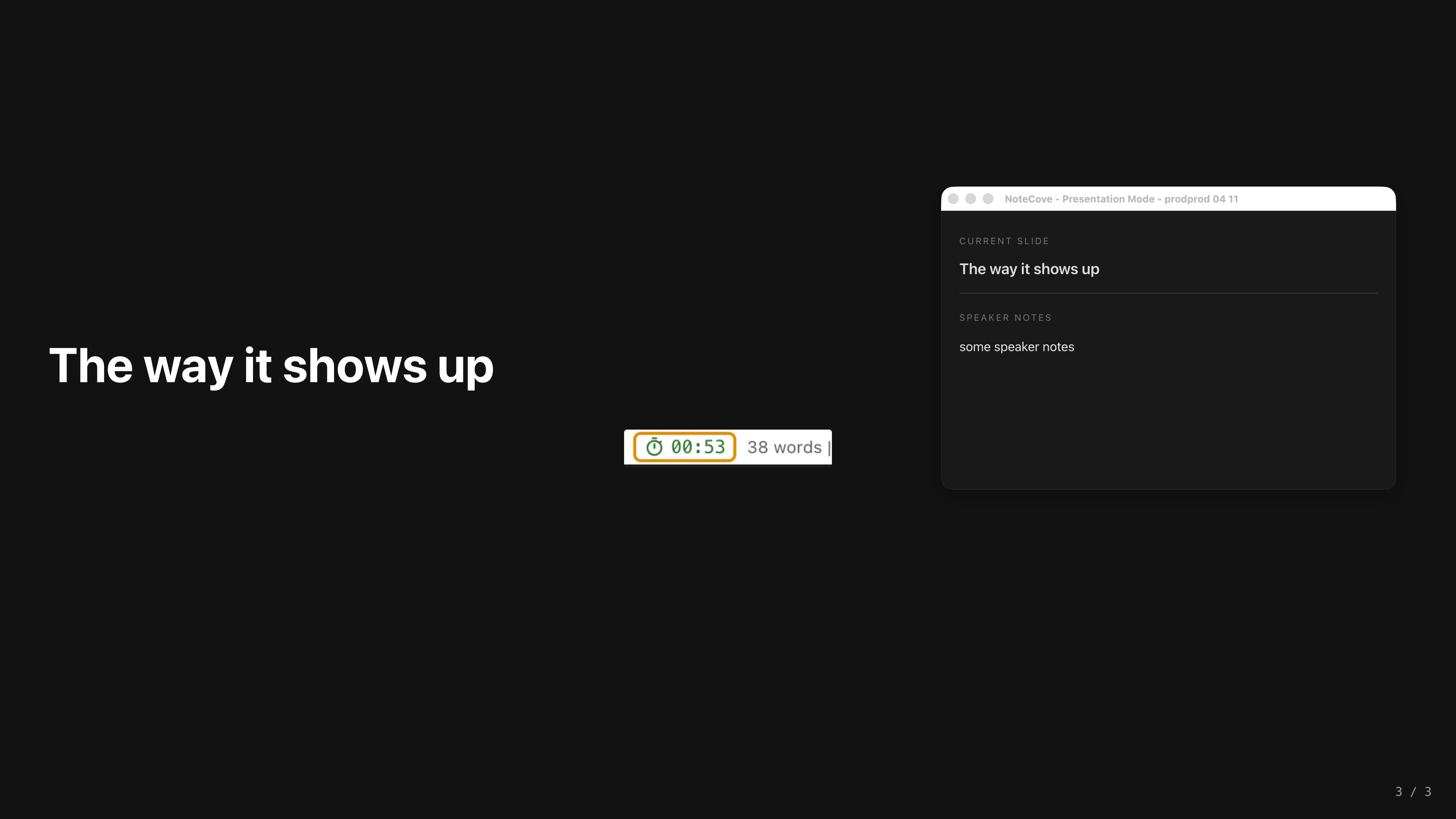
Speaker notes are hidden from the main presentation but appear in the Speaker Notes window.
Opening the Speaker Notes Window
Speaker notes open in a separate window — position it on a second screen while the presentation runs on the primary display.
Currently, the speaker notes window opens automatically when you use View > Present.
Navigation
| Key / Action | Effect |
|---|---|
→ / Space / Enter | Next slide |
← / Backspace | Previous slide |
| Click | Next slide |
ESC | Exit presentation |
A slide counter in the bottom-right corner shows your current position (e.g. 3 / 7).
Tips
- Keep slides focused — one concept per slide works best in presentations
- Use H2–H6 for sub-headings within a slide body; only H1 marks a slide break
- Speaker notes are author-only — they are stripped from the slide view and never visible to the audience
- Presentation Mode is read-only — edit the note before presenting