Encrypted Storage Spaces (Beta)
::: warning Encryption is in beta Encryption should work, but it has not been tested enough for us to trust it with notes you cannot afford to lose. It may break, and you could lose notes. Keep a separate backup of your notes before enabling it. NoteCove shows this warning, and asks you to acknowledge it, whenever you turn encryption on or convert a storage space to an encrypted one. Converting copies your notes into a new encrypted storage space and leaves your original, unencrypted one untouched on disk. :::
An encrypted storage space keeps every note, task, and attachment as ciphertext on disk, so your cloud drive (Dropbox, Google Drive, iCloud, OneDrive) and anyone with access to the synced folder cannot read your content.
What is and isn’t protected
Protected: the contents of notes, tasks, comments, history, and attachments inside the storage space. A stolen copy of the folder is unreadable without the passphrase.
Visible to your cloud provider: file and folder names (which are random IDs, not titles), file sizes, modification times, and a few small bookkeeping files (SD_ID, SD_VERSION, MIGRATED_TO, and the keys/ folder holding your wrapped keys).
Not protected:
- This computer’s local database, thumbnail cache, and temporary files are not encrypted. NoteCove shows this notice whenever you turn encryption on. Use full-disk encryption (FileVault, BitLocker) for the local machine.
- An attacker on a running, unlocked computer.
- Tampering by the provider is detected, but deletion or rollback to an older version of a file is not prevented.
Creating an encrypted storage space
- Open Settings → Storage and choose Add Space.
- Tick Encrypt this storage space and enter a passphrase.
- Save the recovery key shown once. The Done button stays disabled until you confirm you have saved it.
- Choose how this device unlocks the space (see below).
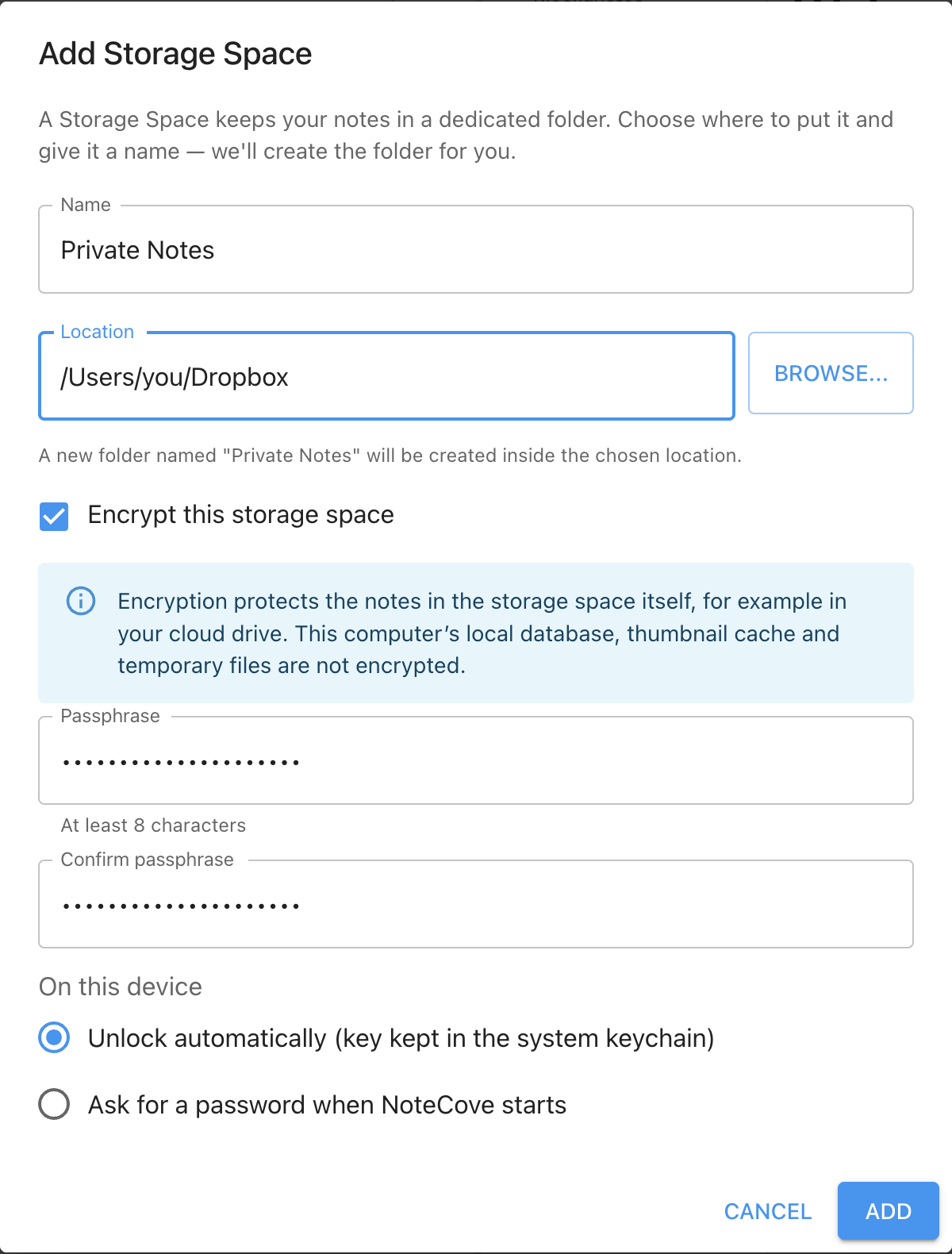
The recovery key is the only way back in if you forget the passphrase, and it is not shown again:
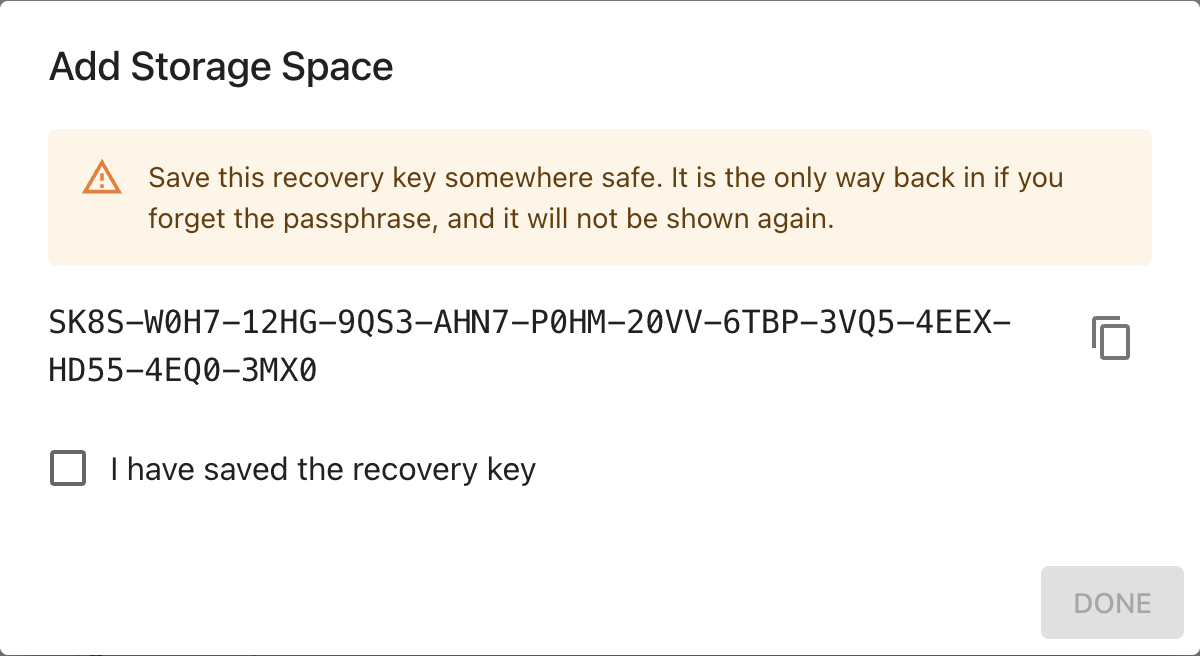
The same options appear in the profile creation wizard.
Unlocking on each device
Each device chooses its own unlock mode:
- Passwordless: the key is kept in your operating system’s keychain. The space opens automatically.
- Local password: you choose a password for this device (separate from the passphrase) and enter it at startup. Required on Linux systems without a keyring.
Attach an existing encrypted space on another device with the passphrase (or the recovery key). Notes appear once the key files have finished syncing; if they haven’t arrived yet, NoteCove tells you to try again shortly.
Locking
Local-password spaces can be locked manually or automatically after a period of inactivity (Settings → Security, off by default). A locked space drops its key from memory and stops syncing until you unlock it.
Converting between plain and encrypted
Right-click a storage space and choose Encrypt… or Decrypt…. Conversion copies the space into a new folder with a new ID, and you switch to the copy. The original is left untouched so you can delete it when you are satisfied. The original is the only unencrypted copy of your notes, so delete it only when you no longer need it.
Other devices that still use the original see a banner that it has moved (“Unfreeze…” lets you resume using it), and are asked to attach the new copy.
When a storage space has moved or gone missing
If a device still points at a space that was converted, or whose folder was moved or deleted, the desktop app asks what to do when it starts, naming the space and its location:
- Use “
(encrypted)” appears when the same folder holds a sibling called<name> (encrypted). NoteCove removes the old entry and opens the Add dialog on that folder, ready for the passphrase. - Remove from this profile forgets the entry. No files are deleted.
- Open read-only (a converted space) keeps using the old folder without writing to it; Skip for now (a missing folder) leaves the entry for later. NoteCove never silently re-creates a missing folder.
If no usable storage space remains, NoteCove asks you to choose a folder, or quit. On iPhone and iPad, a space that can’t be reached shows a banner with Remove; add the encrypted copy from Settings.
Moving a note from an encrypted space to a plain one removes its protection, so NoteCove asks for confirmation first.
Changing the passphrase, and what it does not do
You can add or change passphrases and remove key slots (Settings → Storage → Encryption). The passphrase change is synced to all devices.
Changing the passphrase does not revoke access for anyone who has already unlocked the space. They already hold the content key. If you need to cut someone off, create a new encrypted space (which has a new key and ID) and move your notes into it.
Key slots
Each way of unlocking is a separate slot: a passphrase slot and a recovery-key slot. You can list slots in the Encryption settings or with notecove sd status <space>. Removal rules:
- You cannot remove the last passphrase slot.
- The recovery slot is never removed automatically.
- Removing a slot does not re-key the space, for the revocation reason above.
Command line
Everything above is available from the CLI, for scripts and headless use:
notecove sd create --path ~/vault --encrypted --passphrase-file pass.txt --recovery-key-file recovery.txt
notecove sd attach --path ~/vault --passphrase-file pass.txt
notecove sd encrypt <space> "Vault (encrypted)" --path ~/vault-encrypted --passphrase-file pass.txt
notecove sd decrypt <space> "Vault (plain)" --path ~/vault-plain
notecove sd status <space>          # lock state, unlock mode, key slots
notecove sd unlock <space> --local-password-file local.txt
notecove sd lock <space>
notecove sd unlock-mode <space> password
notecove sd auto-lock 15            # minutes, or "off"
notecove sd change-passphrase <space> --passphrase-file old.txt --new-passphrase-file new.txt
notecove sd change-local-password <space>
notecove sd remove-slot <space> <slotId>
notecove sd unfreeze <space>
Secrets are read from files rather than the command line, so they do not end up in your shell history.
Auditing a storage space
The admin CLI can verify that an encrypted space contains no plaintext outside the small allowed set. It needs no passphrase and reads the raw bytes, exactly as your cloud provider would:
notecove-admin sd-scan-plaintext ~/vault
notecove-admin sd-scan-plaintext ~/vault --known "my secret title" --json
It exits with status 1 if anything leaks. --known (repeatable) names strings that must appear nowhere, including in file names.
Platform support
Encrypted storage spaces work on the desktop app, the CLI and the iOS app. Older versions of NoteCove (and older iOS builds) refuse encrypted spaces rather than showing damaged data.
On iPhone and iPad
- Create or attach. In Settings → Storage → Add Storage (or during first-run setup), turn on Encrypt this storage to create one, or attach an existing encrypted folder and unlock it with the passphrase or recovery key. Notes appear once the key files have finished syncing.
- Recovery key. It is shown once, and you must confirm you saved it. If you close or force-quit NoteCove while that screen is showing, the space is still created and the passphrase works, but the recovery key will not be shown again.
- Unlocking. Each space is unlocked either passwordless (the key stays in the iOS Keychain, optionally behind Face ID or Touch ID) or with a local password you choose for this device.
- Keychain and deleting the app. iOS keeps Keychain items after an app is deleted. NoteCove removes the stored keys on the first launch after a reinstall, so you will need the passphrase to attach the space again.
- Locking. Encrypted spaces lock automatically after NoteCove has been in the background for a while (default one minute; change it in Settings → Storage), or immediately with Lock Now. A locked space does not sync, and its notes are hidden until you unlock it.
- Change passphrase. Available from the space’s row in Settings; the change syncs to your other devices, with the same caveat as above about people who already have access.
- Not encrypted on the device. As on the desktop, NoteCove’s local database, the thumbnail cache and temporary files are not encrypted. Items you share or open with another app are decrypted copies and are removed when the space locks. iOS Data Protection and a device passcode protect these.
- Beta. NoteCove shows the beta warning on iOS whenever you turn encryption on.