Attachments Browser
The Attachments Browser is a dedicated window for finding anything you’ve ever attached to a note or task, without having to remember which note it was in.
Desktop only.
Opening the Browser
Choose Tools → Attachments Browser from the menu bar. It opens in its own window, so you can keep it beside your notes.
What You See
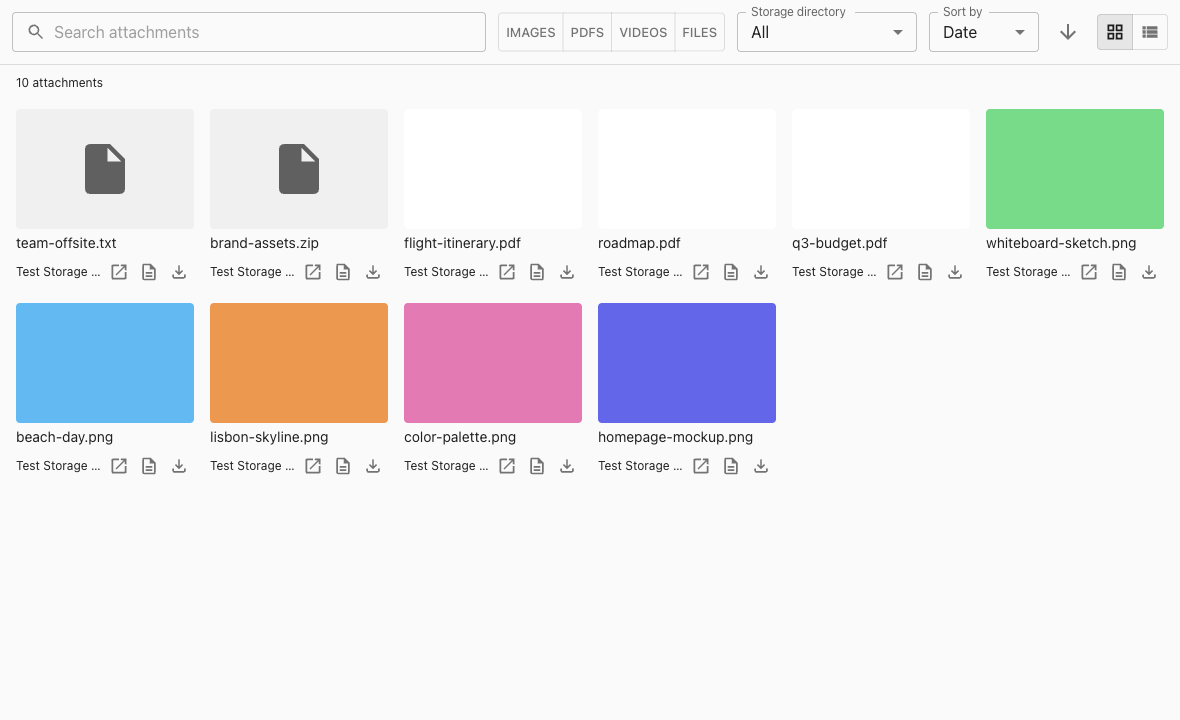
Attachments from all of your storage directories appear together, and each item shows which storage directory it lives in.
- Grid view: Thumbnail cards for images and PDFs, with an icon for other files
- List view: A compact list with details for each attachment
- Switch between the two with the toggle in the toolbar
An attachment is hidden if you’ve deleted it, if the note or task it belonged to has been deleted, or if that note or task isn’t available on this device.
Searching
Type in the search box to find attachments by:
- File name
- Owner title: the title of the note or task the attachment is attached to
Matches are found as you type.
Filtering and Sorting
- Type: Show only images, PDFs, videos, or other files
- Storage directory: Limit the view to one storage directory, or show all of them
- Sort by: name, date, size, or type, in ascending or descending order
Actions
Each attachment has three actions:
- Open: View the attachment in your system’s default app
- Show owner: Jump to the note or task it’s attached to, in a new window. Older images that were added before attachments tracked their note show as “Unknown owner” and can’t be jumped from
- Export: Save a copy to a location you choose
The browser is read-only. It doesn’t delete attachments and doesn’t reveal the storage directory’s internal layout, which stays managed by NoteCove.
Related
- Rich Text Editing: how to add images, PDFs, videos and files to a note
- Search: full-text search across note content